Red Alert 2 Apple Silicon
The complete guide to playing online with CnCNet on M1/M2/M3 Macs
Prerequisites
1
Install Whisky and Winetricks
Get the necessary tools to run Windows apps on macOS.
brew install --cask whisky
brew install winetricks
Create Whisky Bottle
2
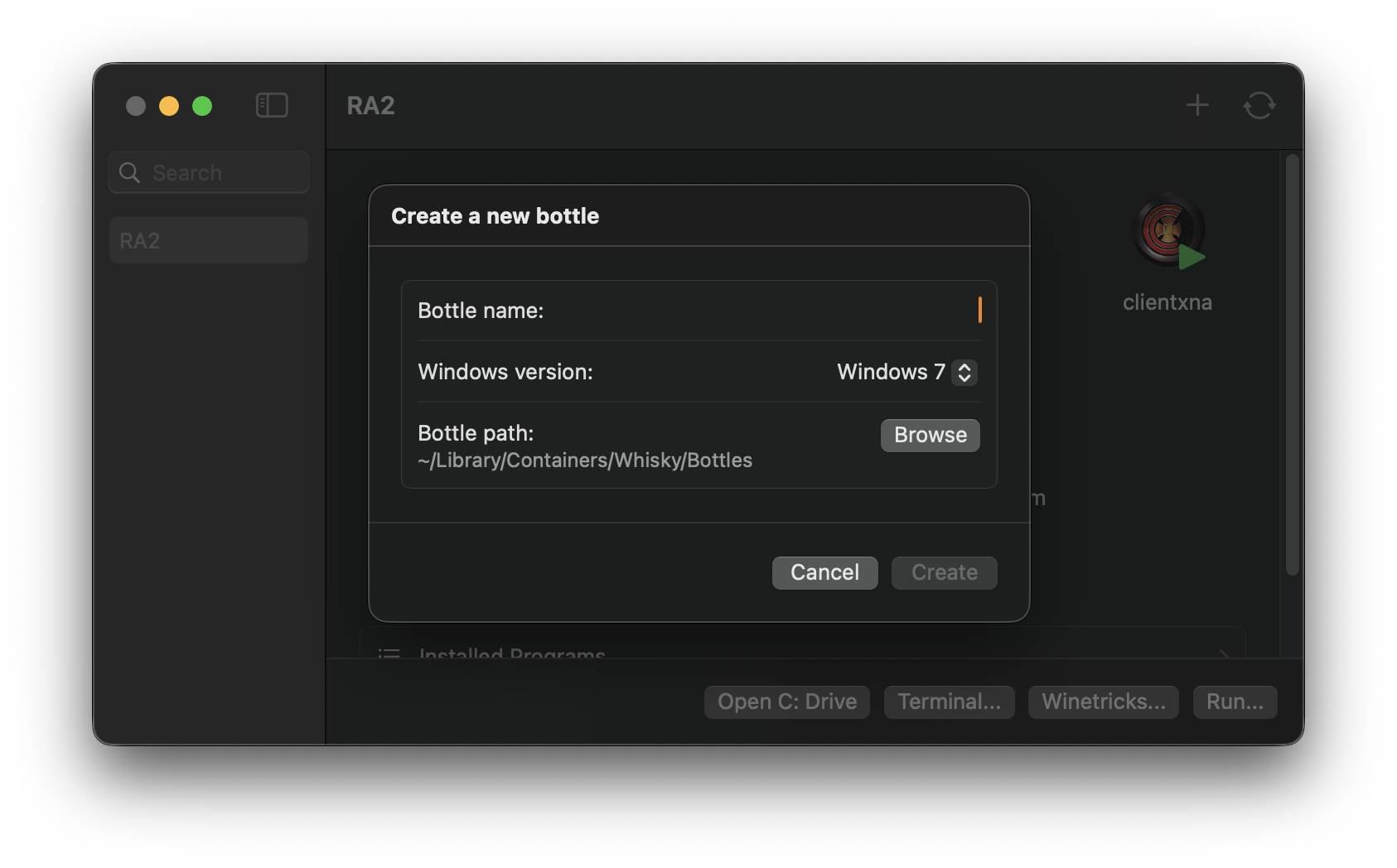
New Bottle Settings
Configure your wine bottle as follows:
- Name Red Alert 2
- Windows Version Windows 7
Install Dependencies
3
Winetricks Packages
Open your bottle in Whisky, click Run... then type winetricks. Install these packages in order:
dotnet48 Required for CnCNetxna40dsoundcnc_ddraw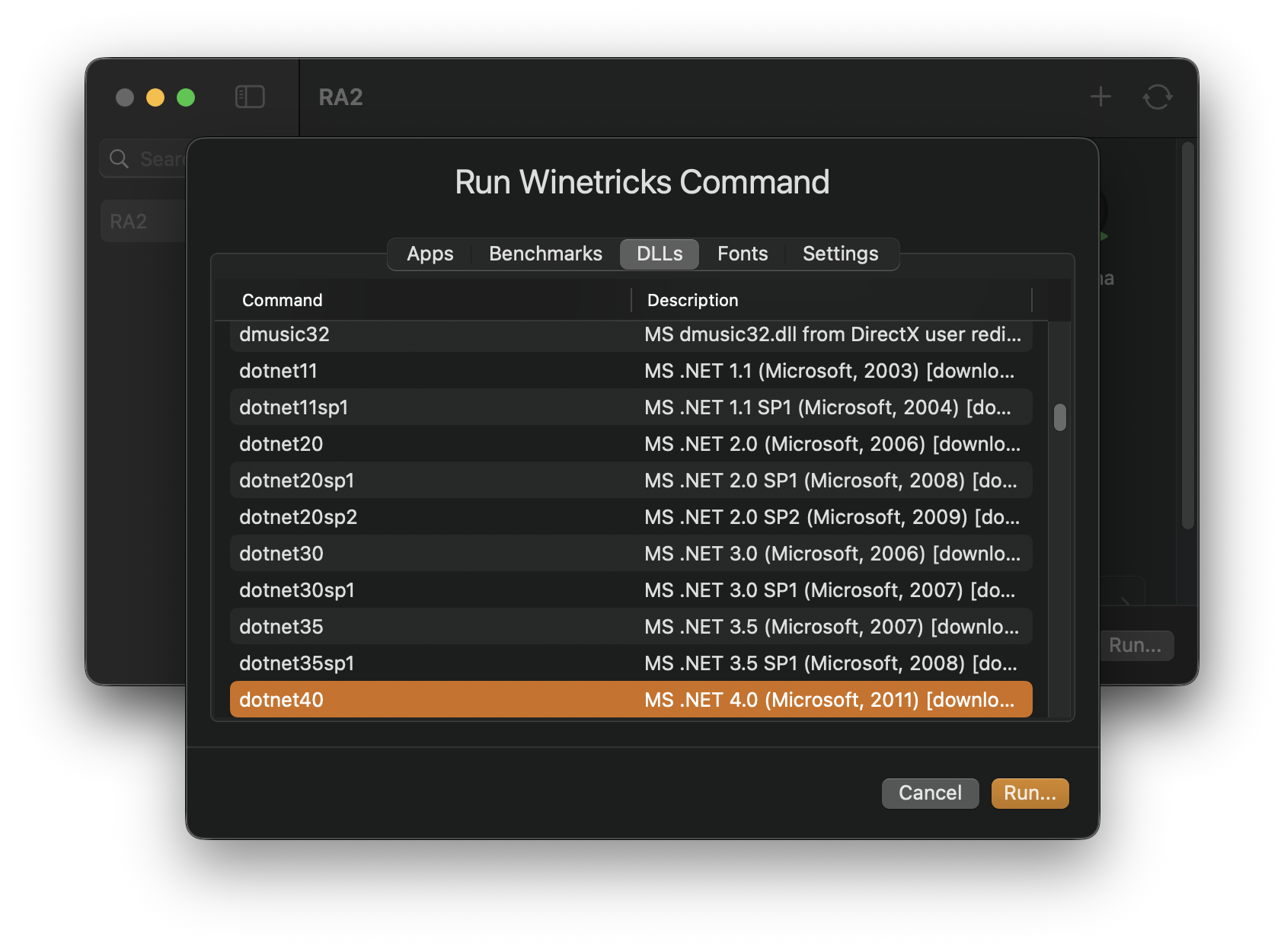
Install Game Files
4
Multiplayer Installers
Download and install each to C:\Program Files (x86)\Red Alert 2:
Launcher Script
Configure CnCNet
6
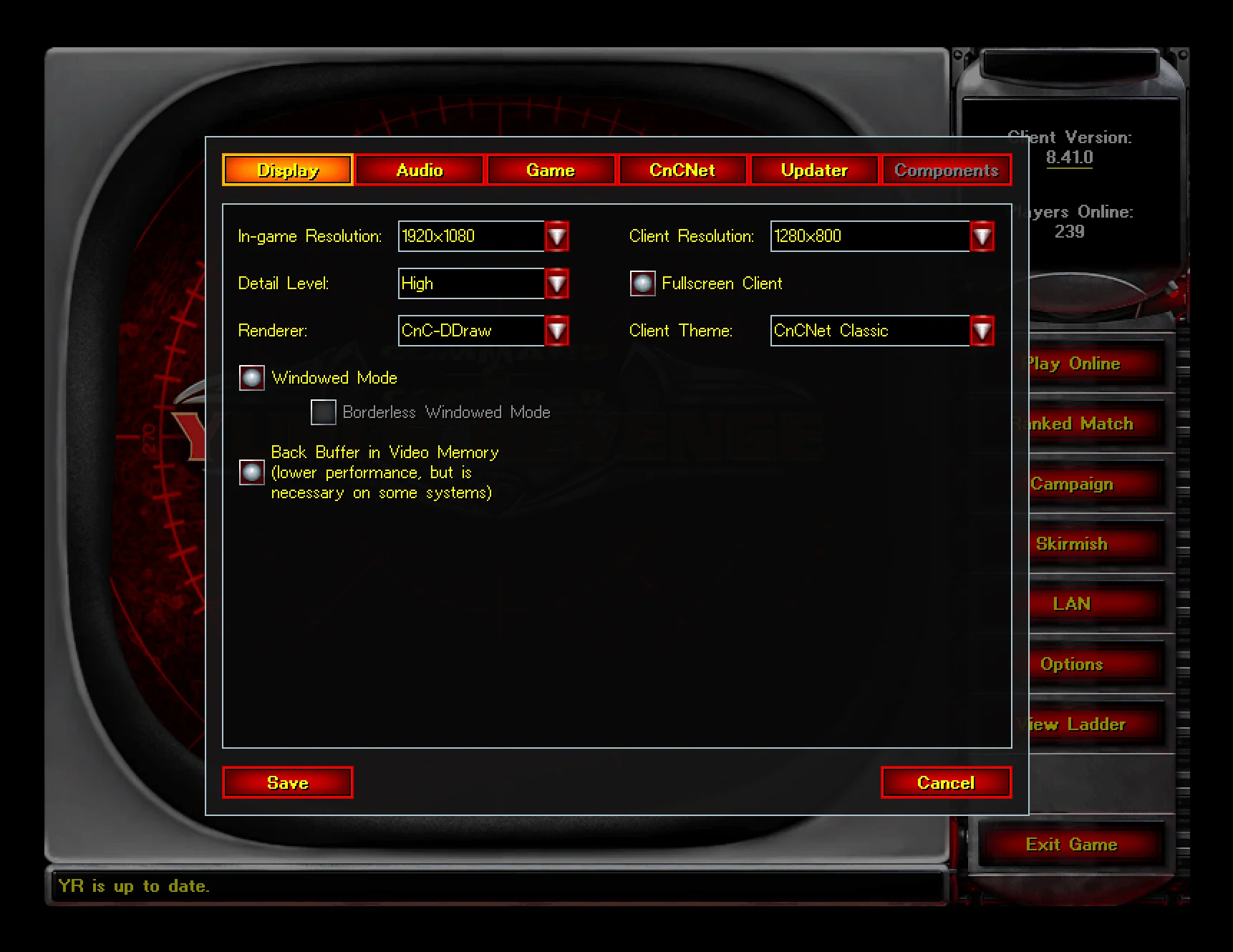
Recommended Settings
Resolution 1920×1080
Client Res 1280×960
Fullscreen Off / Windowed
Renderer CnC-DDraw
Optional Extras
🎵 Game Music (mix files)
- theme.mix — RA2 Music
- thememd.mix — YR Music
Place these in the game folder to enable in-game music.
🗺️ Solo Campaigns
Download and copy to C:\Program Files (x86)\Red Alert 2
- maps01.mix — Allied
- maps02.mix — Soviet
- mapsmd03.mix — Yuri's
Troubleshooting
Won't Start?
- Verify
dotnet48installed - Check bottle ID in script
- Try
cnc-ddrawconfig
No Audio?
- Reinstall
dsound - Check winecfg audio tab
- Install
directmusic
Connection Failed?
- Allow CnCNet in macOS Firewall
- Try different server region
- Disable "UPnP" in settings
Found a bug? Report on GitHub